

This website is translatable
How to Register using Edsby
NOTE: Please do not use the mobile app, as the payment function is unavailable.
To register online, use your existing Edsby parent account to access this link: https://yrdsb.edsby.com/p/BasePublic/
- If you do not have an Edsby account, create a new account first using the same link above, and follow the prompts.
What you will need to know before registering:
- Only students from SK to Grade 8 are eligible. Children who are not 5 years old by December 31 will not be able to complete the registration form.
- Your child's Ontario Education Number (OEN). This number is located on your child's day school report card. For non-YRDSB students who do not have an OEN, this number is not required.
- Please have your credit card (Visa/MasterCard) or PayPal account ready. If paying by credit card, you will see a transaction charge of $20.00 called “YRDSB LANG” on your billing statement.
Once you have signed onto Edsby:
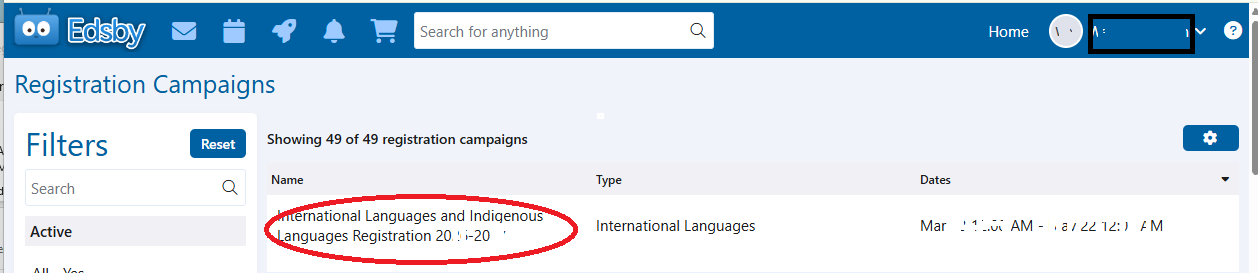
1) Select the Indigenous Languages & International Languages registration campaign:
2) Click on “Register Another Student”
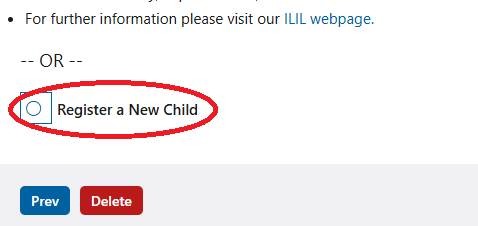
Then click “Register a New Child”
Edsby will ask you to complete a number of pages:
3) Register Student = Student information (Name, home address, etc)
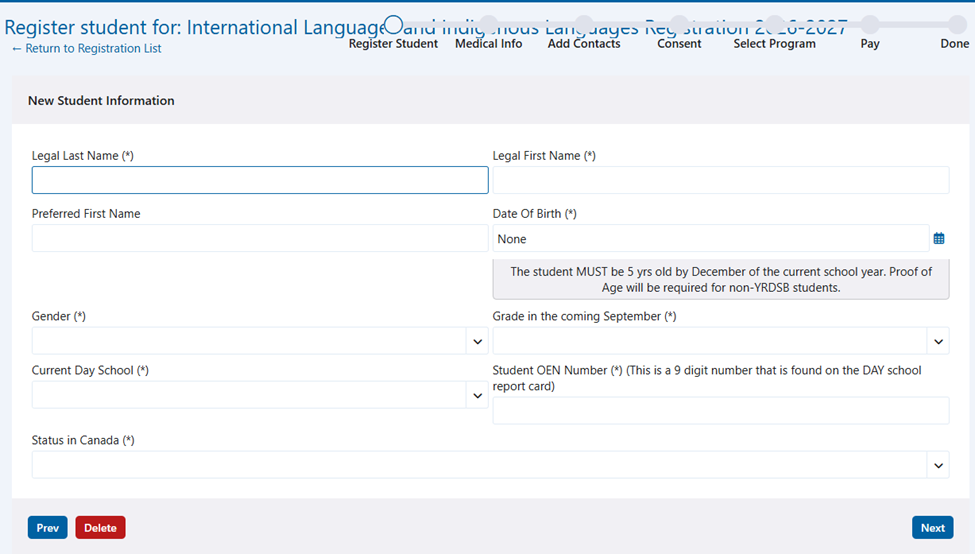
- Tips for completing Student Information: Fields marked with * are mandatory. For a non-YRDSB student, select 'Non-YRDSB Student’ as the 'Current School' and then type the name of your child’s current day school. If the school is not found, please type “School Not Found” and click.
- Under the ‘Status in Canada’ section, ONLY select Study Permit/Visitor Record IF the student is an international student who pays tuition fees to attend a YRDSB school. If the student is attending school under the Parent’s Study Permit or Parent’s Work Permit, please select those options.
- You will be required to provide your child's OEN (Ontario Education Number) as part of the registration process. This number is located on your child's day school report card. For students who are not current YRDSB day school students, this number is not required.
On each page you can use the “Prev” and “Next” tabs to move back or forward between the pages. The red “Delete” tab clears all information on that page.
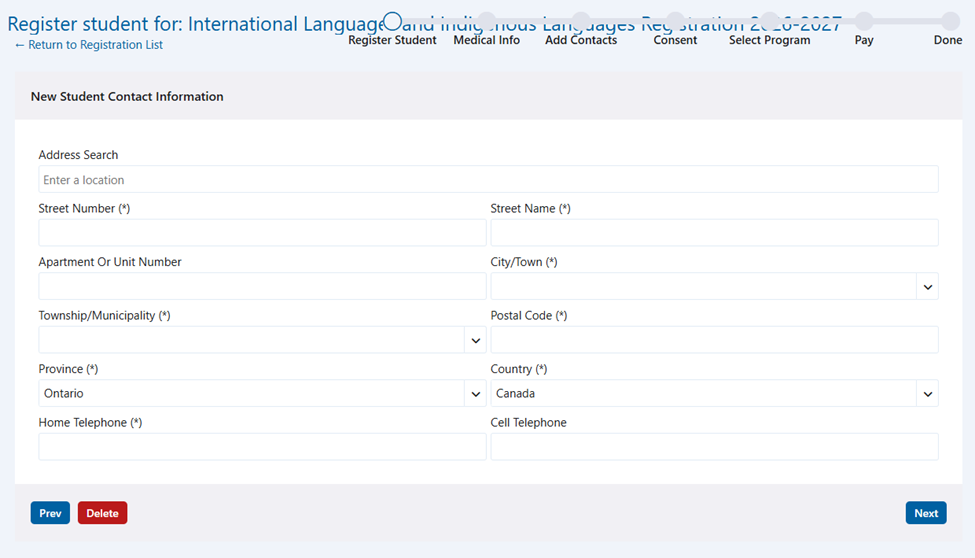
4) In the 'Address Search' field, begin typing the street number and street name and select the correct address from the search results. The form will auto fill with the address you select.
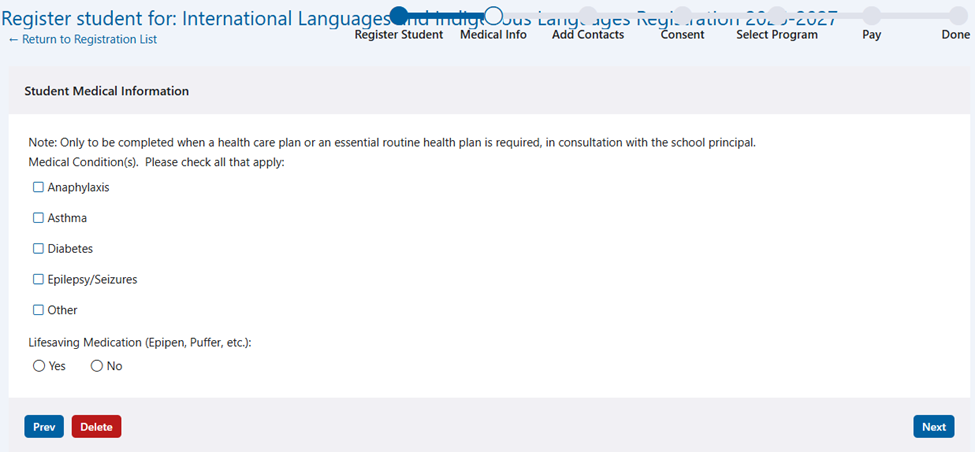
5) Medical Info = Please complete as necessary for any medical conditions/ disabilities/ allergies
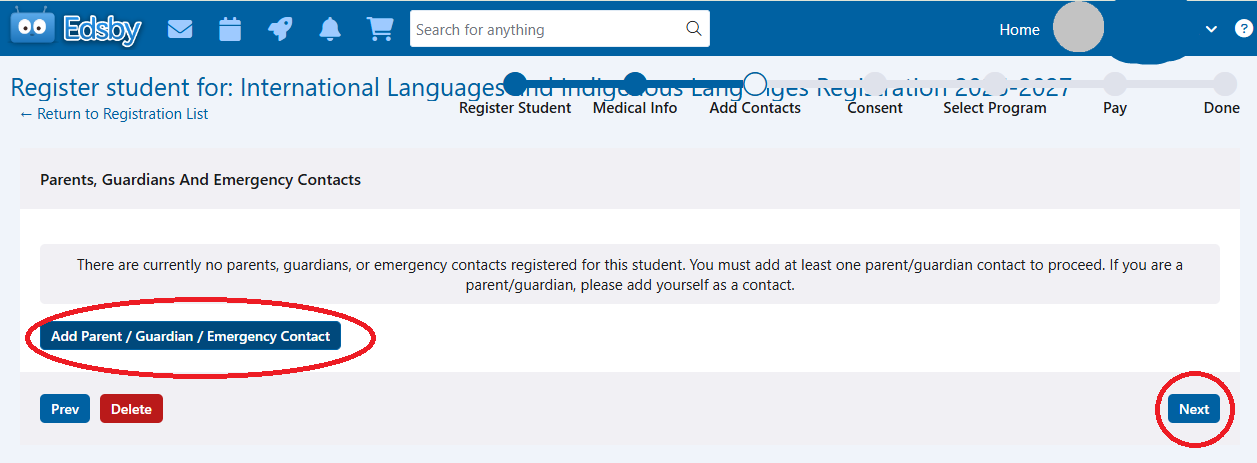
6) Add Contacts = Please add Parent/ Guardian/ Emergency contact information
- This section must be completed with at least one contact.
- Click “Add Parent/ Guardian/ Emergency Contact”
- Add Parent/ Guardian/ Emergency Contact information
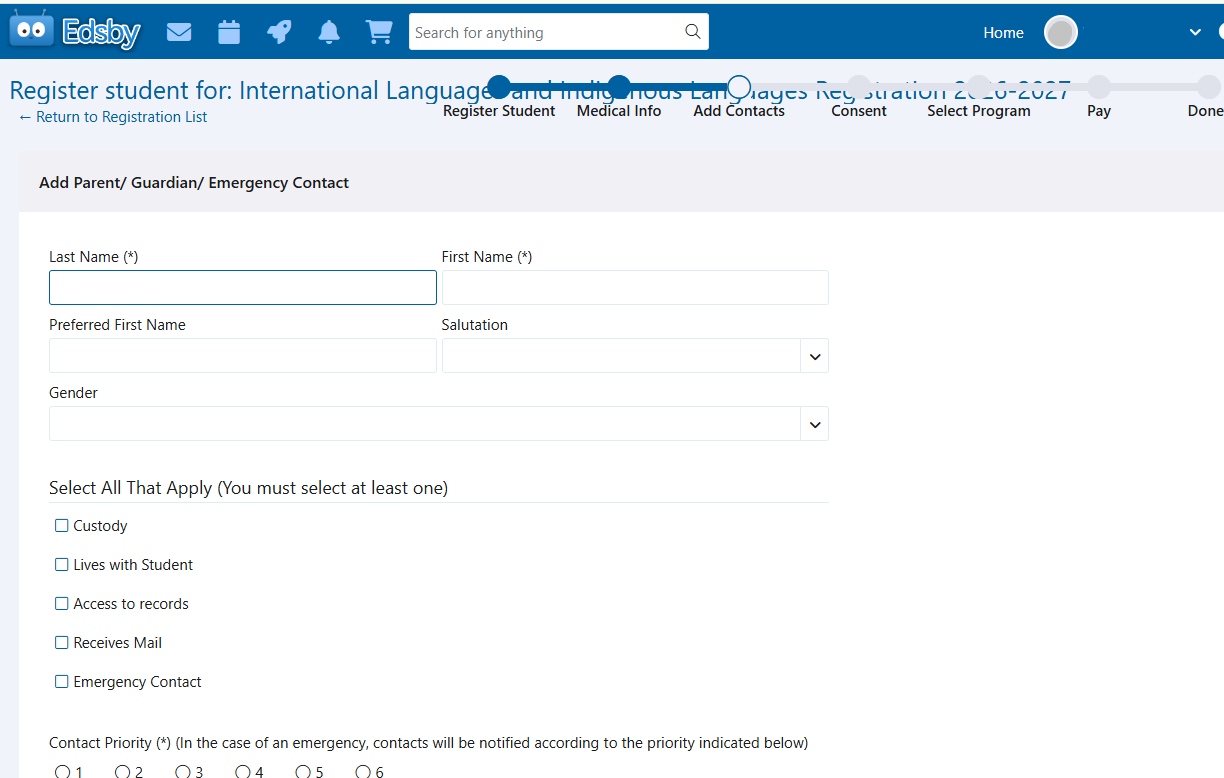
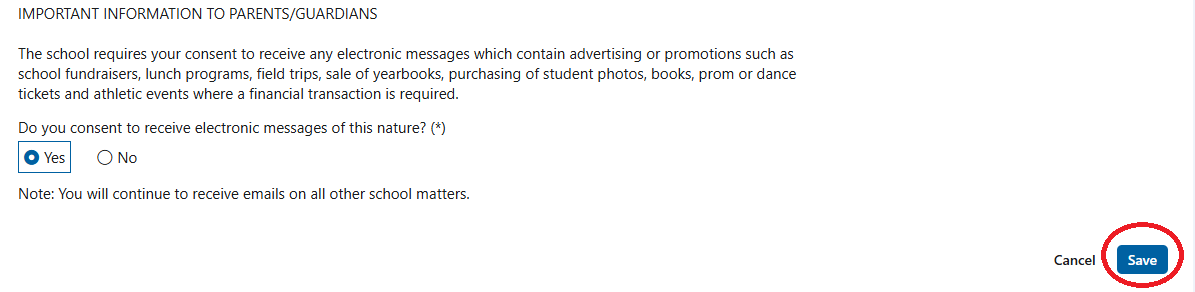
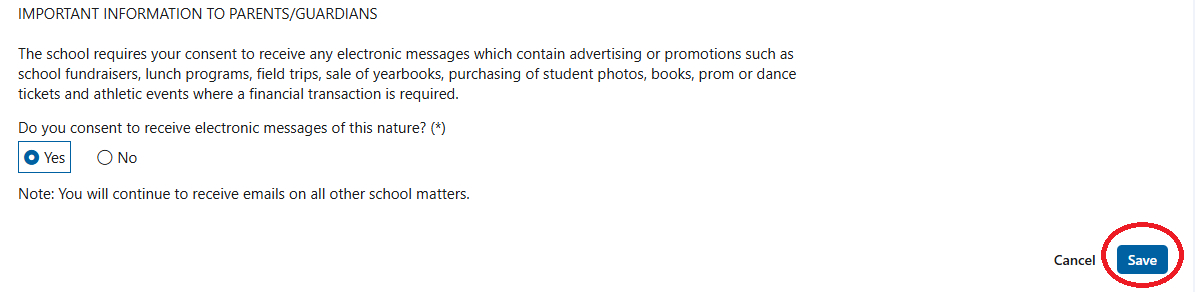
In order to receive communication from the ILIL program, be sure to select ALL Contact and custody information fields in the relationship to student fields. Then click “Save” to proceed to the next page.
You must add at least one parent/ guardian contact to move on with the registration process. You can add up to three in total. Once you have added at least one parent/ guardian contact information, click “Next” to move on with the registration process.
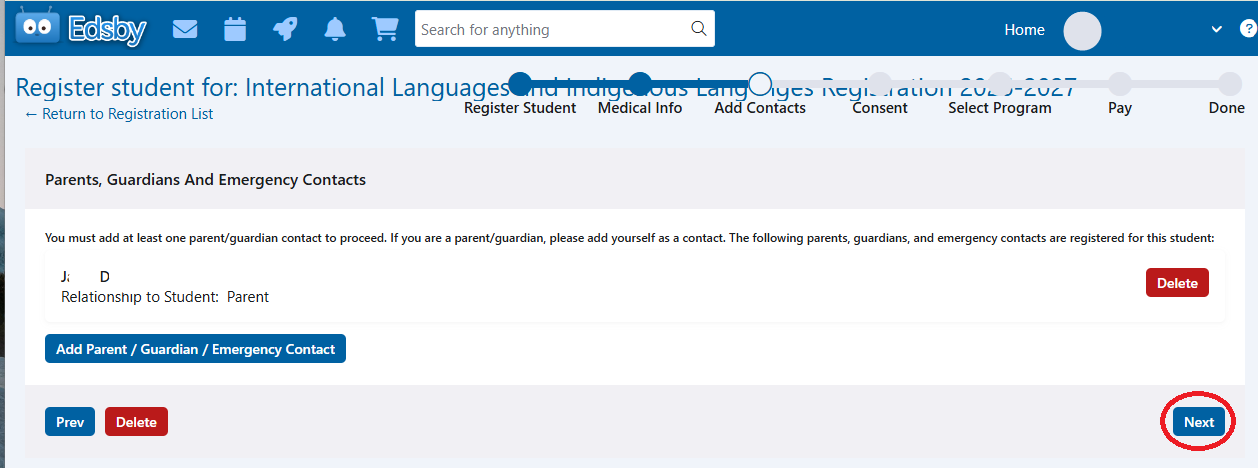
7) Consent = Confirms program delivery method, program resource fee, Eligibility/Requirements and Other Important Information:
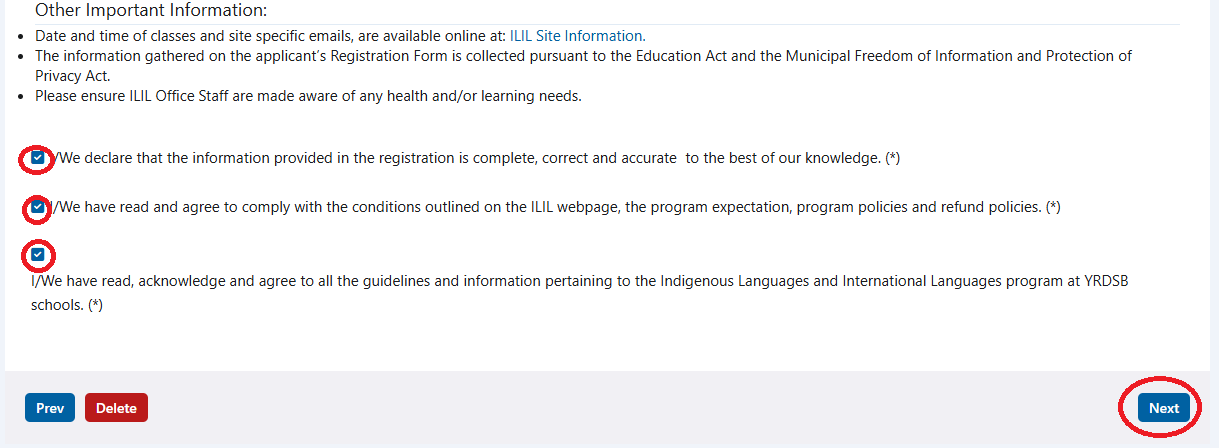
- You must click on all affirmation boxes before proceeding to the next page.
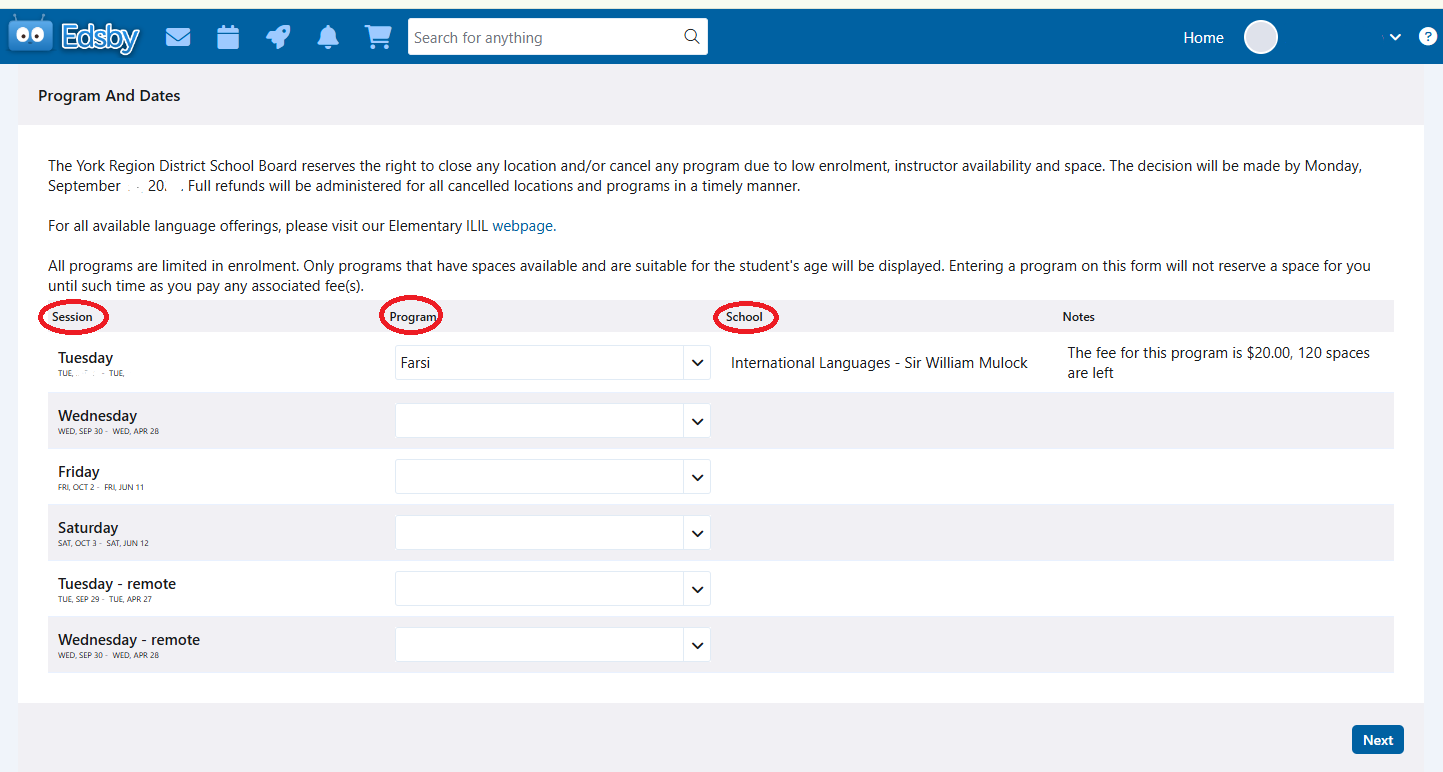
8) Program and Dates = Select the language(s) and location(s) for the student’s registration(s).
- Session = Program Day(s)
- Program = Language Course(s)
- School = Program Location(s)
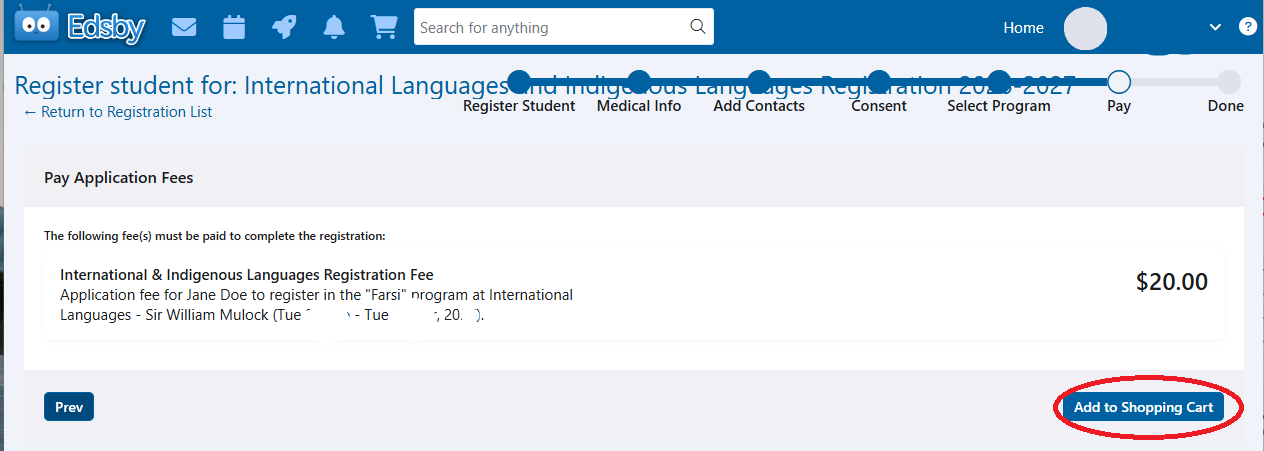
9) Pay = Confirm your program selection
Once the language selection has been confirmed, click “Add to Shopping Cart“.
10) “Register Another Student” or “Proceed to Check Out”
If there is another student to register for the ILIL program, please click on the “Register Another Student” tab.
Once all registrations are complete, please click on the “Proceed to Check Out” tab.
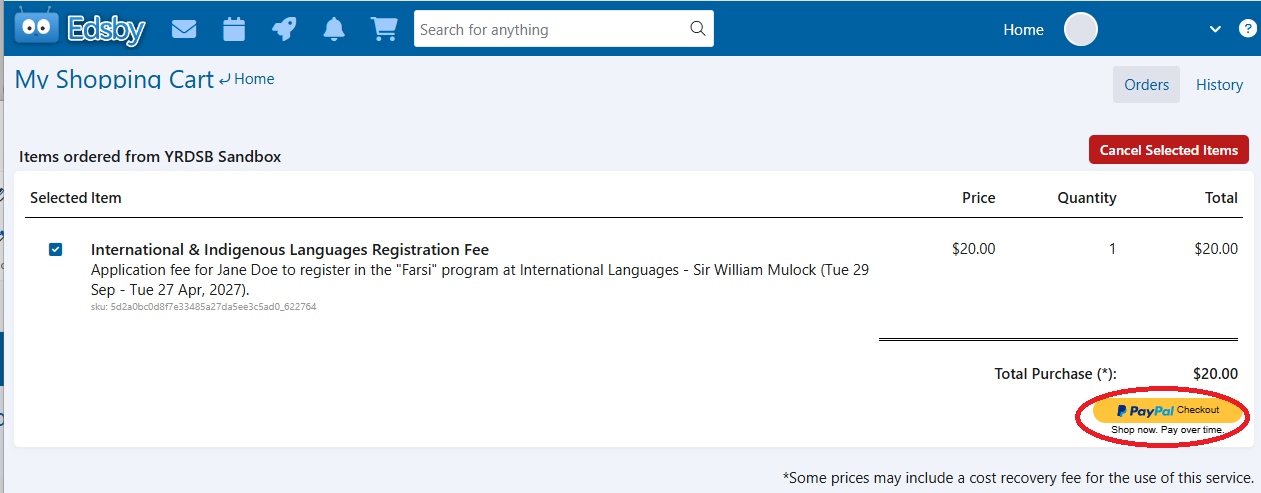
11) Pay
Please pay using PayPal. Click on the yellow “PayPal Checkout” tab.
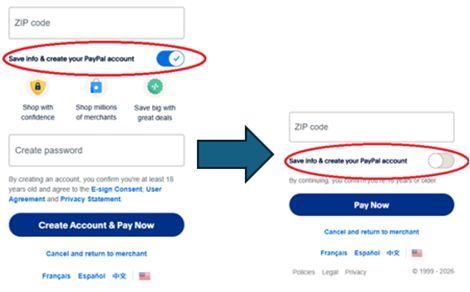
Note: The ILIL program payment option is only made through PayPal. It is not necessary to have a PayPal account. It is still possible to pay for your program selections using PayPal, without a PayPal Account. Please be sure to remove the check mark on the bottom of PayPal checkout. If you leave the check mark it will assume you want to make an account.
Important Information |
|---|
|